
Microsoft Teams on Windows and macOS
Live translation for Microsoft Teams meetings, without Teams Premium
Yes, you can read a Microsoft Teams meeting in your own language without Teams Premium and without the organizer changing a setting. LiveTrans is a desktop app for Windows PCs and Apple Silicon Macs. It listens to the meeting audio your computer is already playing, from the Teams desktop app or Teams in a browser, and shows the speech, translated, in a floating subtitle window on your screen.
It does not join the meeting or appear in the participant list, so it works the same whether you organized the call, were invited by a colleague, or joined as an external guest.
Free: 1 hour a month. Pro: $4.99/month for 30 hours. Windows and Apple Silicon Macs on macOS 13.0+. Updated .
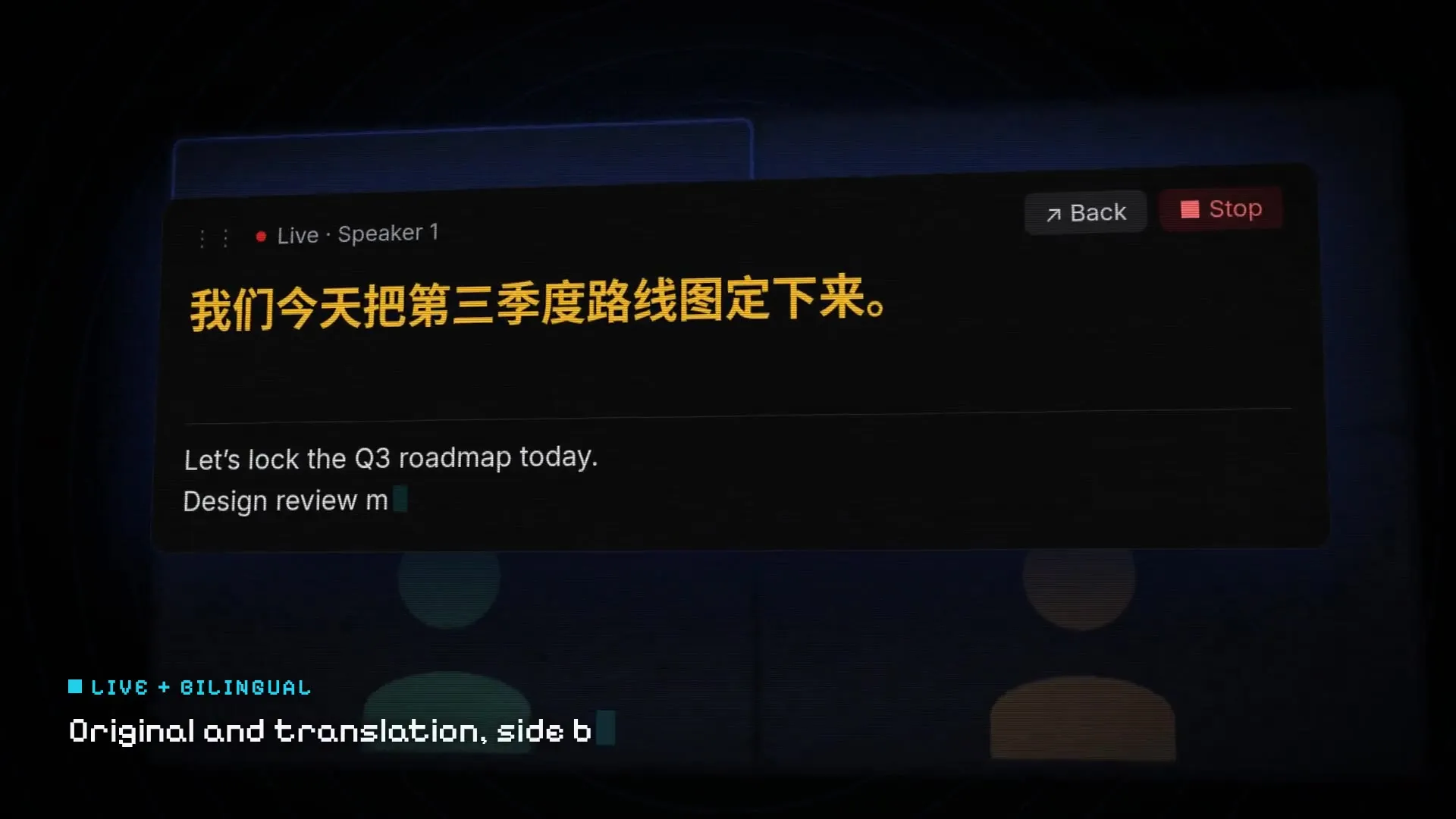
Fictional demo content; no customer, meeting, or account data.
Set it up in three steps
01
Open LiveTrans and choose System Audio
On a Mac, allow the screen-recording permission macOS asks for, since that is how the system-audio stream is provided. On Windows, LiveTrans listens to the default output device, so let Teams play through that same speaker or headset.
02
Pick the languages
Set the spoken language of the meeting, or leave it on automatic detection, and choose the language you want to read.
03
Join the Teams meeting and start
Press start, then drag the floating subtitle window where it will not cover the Teams meeting controls or a shared screen.
Get the installer from the LiveTrans download page.
What Teams offers on its own, and who gets it
Teams can show live captions in the language being spoken. Live translated captions are part of Teams Premium or a Microsoft 365 Copilot license, according to Microsoft’s support page. If the organizer has one of those licenses, everyone in the meeting can turn on translated captions; if not, only participants with their own license see the “Translate to” option. In town halls and live events, the organizer picks the caption languages in advance.
That works well inside an organization that has the licenses. It does not help when the organizer has no such license and you cannot get one yourself, for example as a guest from another company, or when the language you need was not chosen for the event.
How LiveTrans fits into a Teams call
LiveTrans is a separate desktop app, not a Teams add-in or integration. It captures the audio your computer plays, sends it to cloud speech and translation services, and returns text to the app within the session.
- Works with the Teams desktop app and with Teams in a web browser, because it captures system audio rather than one window.
- Floating subtitles stay on top of the Teams window, so you can follow slides and read at the same time.
- Show the original line next to the translation when you want to check a name or a number.
- Use System Audio + Microphone if you want your own side of the conversation in the text as well.
- Pro keeps meeting history and text export, which helps when you need to follow up on what was agreed.
Languages you can follow in a Teams meeting
LiveTrans recognizes 21 spoken languages, or detects the spoken language automatically, and shows subtitles in 14: English, Chinese, Cantonese, Japanese, Korean, Spanish, French, German, Italian, Portuguese, Russian, Arabic, Indonesian and Thai. Vietnamese, Hindi, Turkish, Dutch, Danish, Malay and Urdu can be recognized as spoken languages but are not yet available as subtitle languages.
Set the spoken language explicitly when you know it; automatic detection is convenient, but a fixed language is steadier in long meetings. See the full list of supported languages.
The Teams setting that most often gets in the way: the speaker
Teams has its own speaker choice in its device settings, separate from the one in Windows. On Windows, LiveTrans listens to the system’s default output device. If Teams sends the call to a different headset or speakerphone, LiveTrans hears nothing from the meeting. Set Teams to play through the same device Windows uses, then do a two-minute check with any video before an important call and confirm text appears.
And treat the text as a reading aid. Automatic transcription and translation make mistakes with names, accents, and cross-talk. For anything binding, confirm the detail in writing afterwards.
Good to know before you rely on it
- Audio is sent over the network to cloud services for transcription and translation. LiveTrans is not an offline tool. Details are in the privacy policy.
- Automated text can contain errors. Check names, numbers and decisions before you act on them.
- Follow applicable law, consent requirements and your organisation’s policy when capturing audio.
Further reading
- Microsoft Support: Use live captions in Microsoft Teams meetings Teams’ own captions, and the licenses live translated captions need.
- Live meeting translation subtitles
- Live translation for Zoom meetings
- Live translation for Google Meet
Frequently asked questions
Do I need Teams Premium or a Copilot license?
No. LiveTrans does not use Teams’ translated captions. It runs on your computer and translates the meeting audio you already hear.
Does it work if I join a Teams meeting as a guest?
Yes. Nothing has to be enabled by the organizer or an admin, because LiveTrans works from the audio on your own computer. You still need to follow the meeting’s rules and any consent requirements.
Will other participants see LiveTrans in the meeting?
No. It does not join the call or appear as a participant. The subtitles are only on your screen.
Does it work with Teams in a web browser as well as the desktop app?
Yes, as long as the meeting audio plays through your computer. On Windows, make sure Teams uses the default output device, since that is the one LiveTrans listens to.
Does it work in the Teams mobile app?
No. LiveTrans is a desktop app for Windows and Apple Silicon Macs. There is no phone version.
Which languages can I translate between?
LiveTrans recognizes 21 spoken languages, or detects the spoken language automatically, and shows subtitles in 14, including English, Chinese, Japanese, Korean, Spanish, French, German, Russian and Arabic. The supported languages page lists every language and which pairs work.
Is the audio processed on my computer?
No. Selected audio is streamed to cloud services for transcription and translation. Read the privacy policy before using it with sensitive conversations.
How much does it cost?
Free includes 1 hour of live transcription per month. Pro is $4.99 per month for 30 hours, plus meeting history and text export.
Try it with the free hour
Every account gets 1 hour a month. Upgrade to Pro only if it earns its place.