
Follow online meetings with live bilingual subtitles.
Captures desktop audio independently of Zoom, Teams, Google Meet, and browser meeting controls. No meeting bot or host setup is required.
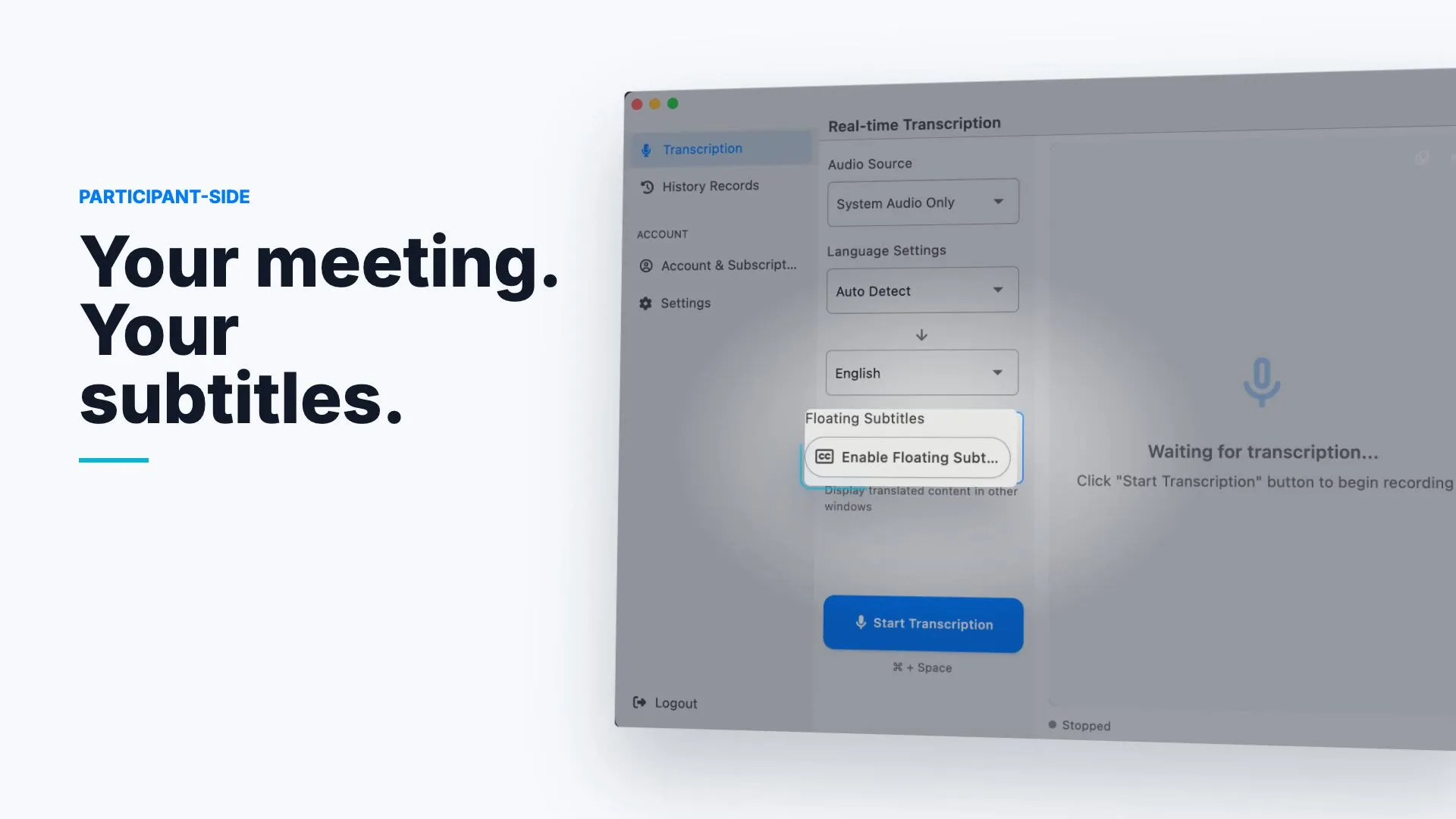
Current macOS 1.0.7 interface shown. Fictional English demo content; no customer, meeting, or account data.
Works with Zoom · Microsoft Teams · Google Meet · Browser meetings
No meeting bot
LiveTrans runs on your desktop. No bot joins the call, no meeting link is shared, and no participant list changes.
No host permission
You do not need the host to enable captions, change admin settings, or approve a third-party app before your meeting.
Keep the text you need
Export meeting text for follow-up, search, and sharing. Review important transcripts before using them as a record.
Three steps to live subtitles
Select audio & languages
Choose your meeting audio source and the language pair you want to follow. No developer API keys required.
Start subtitles
Open your meeting, press start, and keep the floating subtitle window where it helps you follow the conversation.
Review & export
Save meeting text for follow-up. Copy, search, or export the transcript after the call ends.
Start free, upgrade when you need more
Free
$0/month
- 1 hour real-time transcription per month
- Translation for supported languages
- Windows and macOS desktop apps
Pro
$4.99/month
- 30 hours transcription per month
- Meeting history & text export
- Custom subtitle styling & priority support
Need team billing, procurement, or volume support? Contact sales
Frequently asked questions
Which platforms does LiveTrans work with?
The current LiveTrans release is available for Windows and Apple Silicon Macs running macOS 12.3 or later. LiveTrans works with Zoom, Teams, Google Meet, browser-based meetings, and other apps that play audio on your computer.
Does LiveTrans join my meeting as a bot?
No. LiveTrans runs on your desktop as a personal caption layer. It does not join the meeting, appear in the participant list, or require host permission.
What languages are supported?
LiveTrans supports common meeting languages including English and Chinese, with more options available in the app. Check the language selector for the current list.
How is my audio processed?
LiveTrans captures the audio source you select while transcription is running. Review the privacy policy for current processing details before using it in sensitive meetings.
How accurate is the transcription?
Accuracy depends on audio clarity, speaker overlap, accents, background noise, and language selection. Review important text before sharing or using it as a record.
Windows and macOS · Apple Silicon for macOS 12.3+